What is CoBlocks?
CoBlocks lets friends edit the same Scratch project together. Everyone needs the extension and their own Scratch account.
Start in four steps
- Install CoBlocks in your browser.
- Sign in to Scratch, then open CoBlocks and choose Sign in with Scratch Auth. Use the same account.
- Open a project you own and click CoBlocks beside Share.
- Click Copy invite link and send it to a friend who has installed and signed in to CoBlocks.
More detail & reference
Before you start
- Use a desktop browser: Chrome 121+ or a compatible Chromium browser, or Firefox 140+ with the temporary add-on workflow.
- Each collaborator needs their own Scratch account and CoBlocks installation.
- Use the same CoBlocks server and compatible extension versions. Keep one editor tab per person for the project.
1. Connect your Scratch account
- Sign in at scratch.mit.edu in the same browser profile you will use for CoBlocks.
- Open the CoBlocks extension popup and select Sign in with Scratch Auth.
- Follow the verification instructions in the tab that opens, using the same Scratch account.
- Wait for the CoBlocks success page, return to Scratch, and reopen the popup. The friends list should be available.
2. Enable CoBlocks on your project
- Open one of your own Scratch projects in the editor, or create a new one while signed in.
- Give the project a useful name and let Scratch save it.
- Click CoBlocks beside the editor’s Share control. Activation saves the project and opens the Collaboration panel.
- Keep this editor open while you invite the other person.
3. Invite your collaborator
- In the Collaboration panel, select Copy invite link.
- Send that link privately to the person you want to edit with. They must install CoBlocks and complete Scratch Auth first.
- They open the complete invite URL in the same browser profile. CoBlocks accepts the invitation and opens or creates their linked Scratch copy.
- Confirm that both accounts appear in the online collaborator area.
4. Check your first shared edit
- Both people select the same sprite and open the Code tab.
- Move or add one block and confirm it appears for the other collaborator.
- Open project chat and send a short message to confirm you are in the same collaboration.
- Continue using Scratch’s normal saving controls and download an .sb3 copy before important changes.
Find your way around the popup
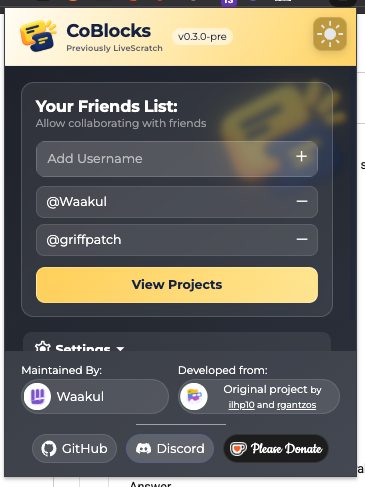
The friends list and View Projects are in the main popup. Settings is below the list; expand it to manage notifications, sound, badges, custom servers, and your CoBlocks account.
See the popup
Light theme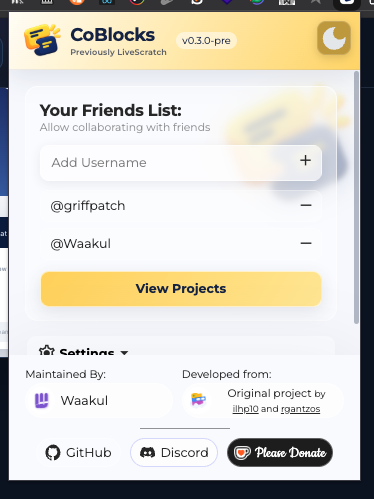
Dark theme