
What is Scratch Auth?
Scratch Auth verifies which Scratch account belongs to you so CoBlocks can identify you and check project access. Use the same account you are signed in to on Scratch.
How to sign in
- Sign in to Scratch in the browser where CoBlocks is installed.
- Open the extension popup and click Sign in with Scratch Auth.
- Complete the instructions in the tab that opens, then return to Scratch and reopen CoBlocks.
See the sign-in button
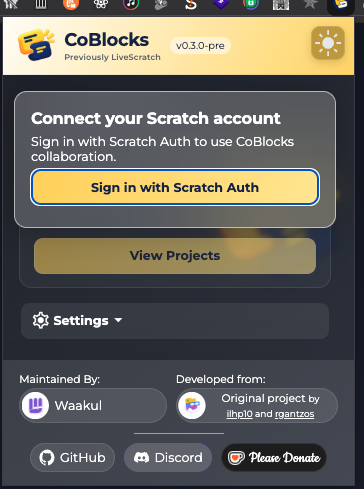
If you get logged out
Check that your Scratch and CoBlocks usernames match. Signing in to the same CoBlocks account elsewhere ends its previous session. To switch accounts, use Settings → Log out, change your Scratch account, and sign in again.
More detail & reference
Connect your account
CoBlocks verifies the identity returned by Scratch Auth and issues its own backend session token. Do not paste passwords or login tokens into chat, GitHub issues, or invite URLs.
- Sign in to Scratch first, in the same browser profile where CoBlocks is installed.
- Click the extension icon and select Sign in with Scratch Auth.
- Follow the Scratch Auth provider’s verification instructions in the new tab. Use the same username as your active Scratch account.
- Wait for the CoBlocks sign-in success page. Choose Open Scratch or close that sign-in tab.
- Return to the popup. Expand Settings to check the CoBlocks account username.
See the sign-in button
Account matching and session lifetime
| Rule | Behavior in the current release |
|---|---|
| Same Scratch account | The verified CoBlocks username must match the Scratch account currently signed in. Usernames are compared without case sensitivity. |
| One active session per account | Signing in elsewhere invalidates the previous CoBlocks session. Use separate Scratch accounts for separate collaborators. |
| 30-day token | Backend-issued tokens expire after 30 days. A token can become invalid earlier through logout, another login, or an account change. |
| Short-lived login flow | A pending Scratch Auth handoff expires after five minutes. Start again from the popup if it expires. |
Switch accounts or log out
Changing the custom server also clears the current login and reloads the extension. Sign in separately on the new server; server accounts and project lists are not automatically transferred.
- Save your Scratch work first.
- Open CoBlocks → Settings → CoBlocks account → Log out.
- If switching accounts, sign out of Scratch and sign in with the new account.
- Open the popup and complete Scratch Auth again with that account.
If sign-in keeps looping
- Check the Scratch username and the CoBlocks account username; differences in capitalization alone should not cause a mismatch.
- Make sure another device or browser profile is not repeatedly signing in to the same CoBlocks account.
- Allow the extension to access Scratch and your API server. Refresh Scratch after installing or reloading the extension.
- Finish the new login tab rather than reopening an old callback URL. After an expired handoff, start again from the popup.
- Check service status. Provider/network failures can interrupt verification; wait before retrying repeated login attempts.